Manage many Instagram accounts from one workspace
Put each Instagram profile on its own Android cloud phone and handle Reels, Stories and messages for every brand or client in one place.
Real Android devices
One phone per account
Automation included
Shared team access
Made for teams that run accounts at scale
Agencies
Run client accounts and campaigns side by side in one workspace.
Creator networks
Keep every creator profile organised and schedule routine posts.
Performance marketers
Test offers and creatives across separate, clean accounts.
Online stores
Manage several storefront and brand accounts from one place.
App and growth teams
Try campaigns and builds on many real devices at once.
Why multiple Instagram accounts get flagged
Instagram lets one person switch between several accounts, but it also looks at how accounts are created and used. When many accounts share one phone, one network and the same habits, they start to look connected.
Common risks in Instagram multi-account setups
Several accounts are created or used on the same device.
Accounts share one IP address or switch between unstable connections.
New accounts post, follow or message at full speed from day one.
Teammates share passwords and log in from wherever they are.
Profiles reuse the same bio, photos and posting schedule.
Direct messages are copied word for word across accounts.
Geelark gives each account its own Android cloud phone, so device data, app storage and network settings stay with one profile. Instagram’s rules still apply; read its Terms of Use before you scale.
How to set up multiple Instagram accounts
Switching inside the app is fine for two or three personal profiles. For brand, client or regional accounts run by a team, a little structure up front saves a lot of untangling later.
1
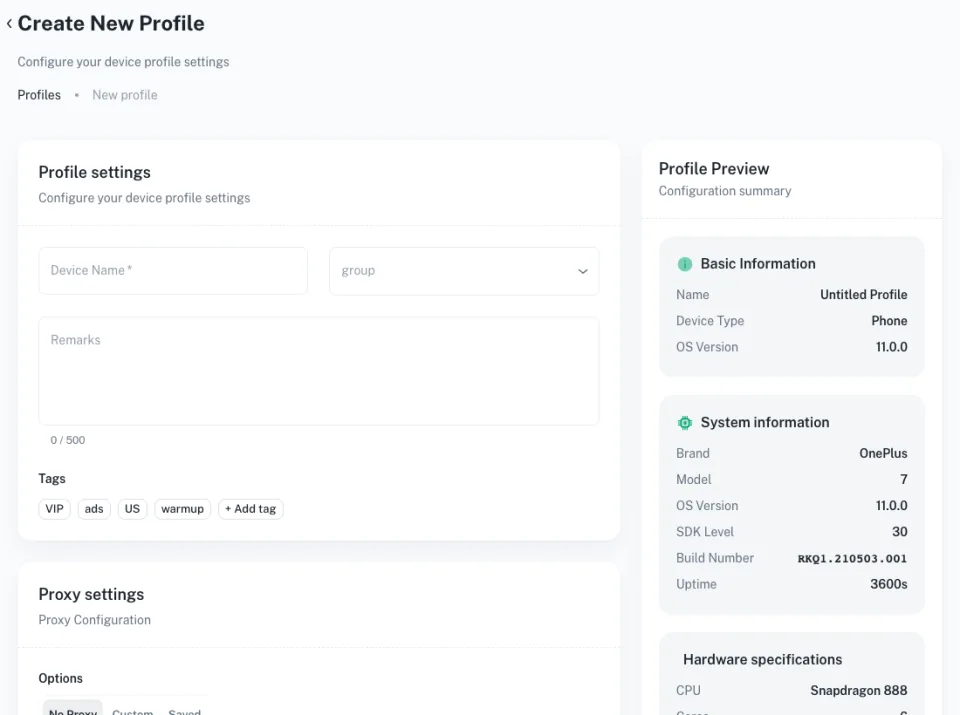
Create a cloud phone for each account
Open a new Android profile in Geelark for every Instagram account, so each one has its own device details and app data.
2
Set the proxy and region
Assign a proxy to the profile and check where it connects from before you install Instagram and sign in.
3
Use separate sign-up details
Give each account its own email address or phone number, password and recovery options.
4
Warm up before you scale
Start with normal browsing, a complete profile and a few posts before you add Reels, follows or messages at volume.
5
Group accounts by brand or client
Label and group profiles by brand, niche, region or teammate so everyone knows which account they are in.
6
Automate the repeat work
Once an account is settled, move routine posting and warm-up steps into templates and run them on a schedule.
Keep every Instagram account on its own Android cloud phone
Instagram is built for phones. Running each account in the native app on a separate cloud phone keeps sessions, storage and network settings apart, and your team can open any of them from a browser or the desktop app.
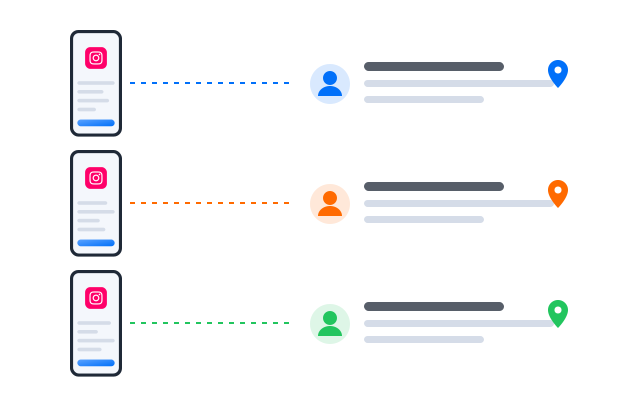
Separate app data per account
Each phone keeps its own Instagram login, cache, photos and drafts.
Its own device environment
Device details belong to one profile instead of being shared by every account.
Proxy and region per profile
Pick the network and location each account should use and keep it consistent.
The real Instagram app
Reels, Stories, DMs and Shop features work as they do on a handset.
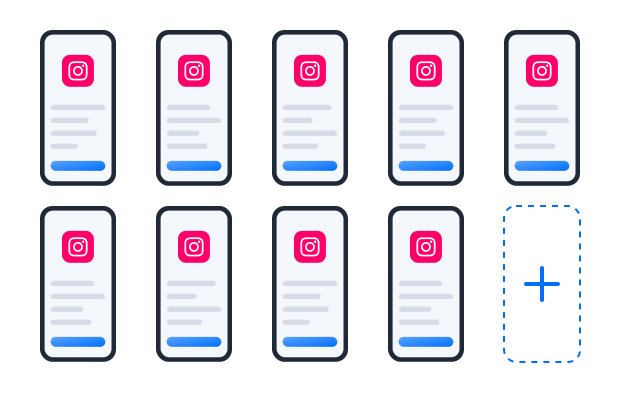
Manage all your Instagram accounts from one workspace
Instead of a drawer of phones and a spreadsheet of logins, every account sits in one dashboard. Filter by campaign, open a phone with a click and see who worked on it last.
Organise accounts by campaign
Group profiles by brand, client, market or creator and give each group an owner.
Less switching, fewer mistakes
Open the phone you need instead of logging out and in, so posts go out from the right account.
Automate Instagram warm-up, Reels, DMs and engagement
Repetitive Instagram work follows the same steps every day. Turn those steps into templates or no-code workflows and run them across the phones you choose, at a pace that suits each account.
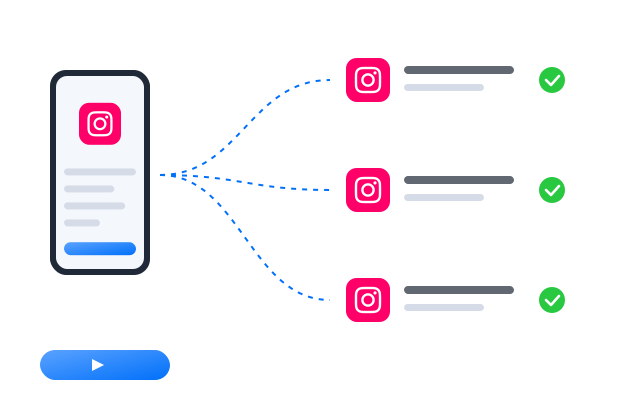
Warm up new accounts
Schedule light browsing, profile set-up and early posts for accounts that are just starting.
Post Reels to selected accounts
Send a batch of videos to the phones that should publish them and stagger the times.
Handle messages more efficiently
Prepare replies and work through inboxes per account without mixing conversations.
Keep accounts active
Plan routine activity so accounts stay in use without someone tapping through each one.
Start faster with Instagram automation templates
Ready-made templates cover common Instagram jobs. Your team adjusts the steps, picks the phones and sets a schedule.
Templates that run on real Android
Every template drives the Instagram app inside a cloud phone, so it works with the same screens your team uses by hand.
Best ways to manage multiple Instagram accounts
Different Instagram teams need different tools. Each option below solves part of the problem; the right one depends on how many accounts you run and who works on them.
| Method | Best for | Limitations |
|---|---|---|
| Instagram’s own account switcher | Individuals with a few accounts | Not built for teams, client groups or separate environments |
| Physical phones | Small teams with a handful of key accounts | Costly to buy, charge and hand over; hard to scale |
| Desktop browsers | Web-based checks and light posting | Many app features such as Reels editing and DMs work best on mobile |
| Android emulators | Testing on your own computer | Limited by your hardware; not designed for long-running accounts |
| Antidetect browsers | Web profile separation | No native mobile app |
| Geelark cloud phones | Teams running many Instagram accounts | Needs clear account roles and a warm-up plan |
For Instagram teams that need native app access, separate environments, Reels workflows, automation and team collaboration, cloud phones are a practical alternative to physical phones, emulators and browser-only tools.
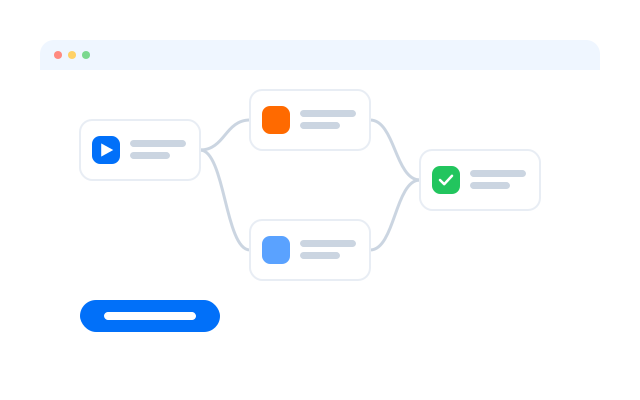
Get started in three steps
Câu hỏi thường gặp
Can I have more than one Instagram account?
Instagram lets you add several accounts and switch between them in the app. Its rules on how accounts may be used can change, so check Instagram’s current Terms of Use and Community Guidelines for the accounts you plan to run.
How many Instagram accounts can I add to one app?
Instagram sets the limit for its own account switcher and may change it. With Geelark each account sits in its own cloud phone, so you are not limited to one app on one handset.
How do I create a new Instagram account in Geelark?
Create a cloud phone, assign a proxy, install Instagram from the app store inside the phone and sign up with that account’s own email or phone number.
Why do Instagram accounts get restricted?
Common triggers are sudden bursts of activity, repeated content, many accounts on one device or network and reports from other users. Instagram explains its rules in its Help Center.
Can I use the official Instagram app in Geelark?
Yes. Each cloud phone is a real Android environment, so you install and use the official app.
Do I need a separate proxy for each account?
Many teams give each account its own proxy so its network stays consistent. Geelark lets you set one per cloud phone and check the connection first.
Can I automate Instagram tasks?
Yes, with templates, the no-code workflow builder or the API. Keep the pace reasonable and follow Instagram’s rules on automated activity.
Are cloud phones better than emulators for Instagram?
Emulators suit testing on your own computer. Cloud phones run in the cloud, stay on when your computer is off and can be shared with a team.
How much does it cost?
It depends on how many cloud phones you need and for how long. See Bảng giá for the current plans.
Start running your Instagram accounts in the cloud
Set up your first cloud phone in minutes.