Real Android phones in the cloud for every account you run
Give each social account its own isolated Android device, then manage proxies, apps, automation and teammates from a single workspace.
Genuine Android hardware
A dedicated phone per account
Automation built in
Shared team access
Trusted by teams that run accounts at scale
Marketing teams
Agencies
Affiliate teams
Online stores
Mobile developers
The basics
Điện thoại đám mây là gì?
A cloud phone is a physical Android device that lives in a data center instead of your desk. You stream its screen to your computer, install apps on it, and set its network and location just like a phone in your hand.
Geelark lets you create as many of these devices as you need and organise them by account, brand or client, with automation and team access on top.
Built for mobile apps, not browser tabs
Browser profile tools are made for websites, and emulators borrow your own computer’s power. A cloud phone runs native apps on dedicated hardware, so it behaves like a real device and scales without slowing your machine down.
Grow past the phone farm
A handful of phones is easy to manage. Dozens are not: buying, charging, storing and passing devices around soon takes over the day. Geelark moves that work into the cloud so you can launch, sort and share devices from one place.
Before · A shelf of phones
Tangled cables
Charging docks
Passing devices around
Repairs on site
Buy, charge, store, share, fix… and start again.
After · Geelark workspace
Phone groups
Remote control
Role-based access
Tự động hóa
Every device, account and teammate in one place.
Add phones in seconds
Create a new Android device whenever you need one, with no hardware to order.
Reach them from anywhere
Open any phone from the desktop app or a browser, at home or on the road.
Keep accounts apart
Each account gets its own device, proxy, storage and app data.
Share work, not devices
Give teammates access to exactly the phones they need, nothing more.
Your whole mobile operation in one workspace
Set up devices, automate routine work, coordinate your team and keep daily account operations running from a single dashboard.
Điện thoại đám mây
Tự động hóa
Đồng bộ thao tác
Proxy
Team
AI content
A separate phone for every account
Create isolated Android devices and sort them by client, brand, region or campaign.
- Group by team, brand or region
- Run actions on many phones at once
- Own proxy and apps per phone
Hand repetitive work to templates
Schedule posting, warm-up and engagement flows that run on their own across accounts.
- Ready-made templates
- Flexible schedules
- Run logs for every task
Control many phones as one
Mirror taps and typing from one phone to a whole group in real time.
- Pick which phones follow
- Live preview of every screen
- Pause any phone at any time
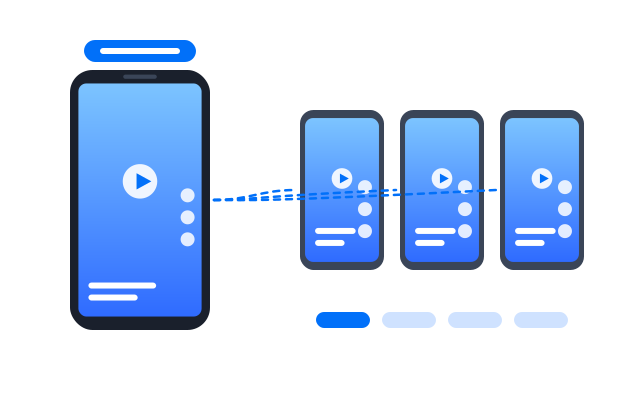
The right network for every phone
Assign a proxy per device and check its location before you launch.
- HTTP and SOCKS5
- Per-phone assignment
- Built-in connection test
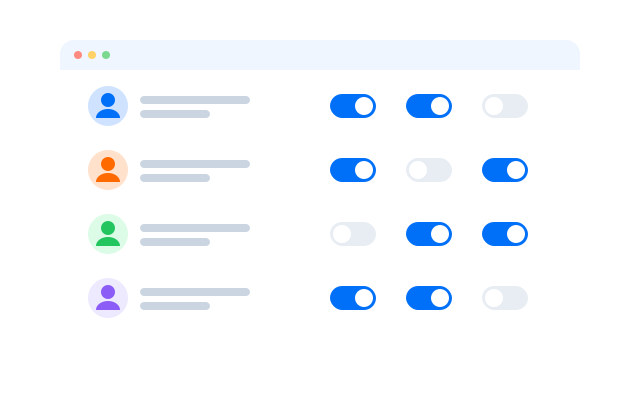
Work together without sharing passwords
Invite teammates, assign roles and see an audit trail of what happened.
- Vai trò và phân quyền
- Shared phone groups
- Activity history
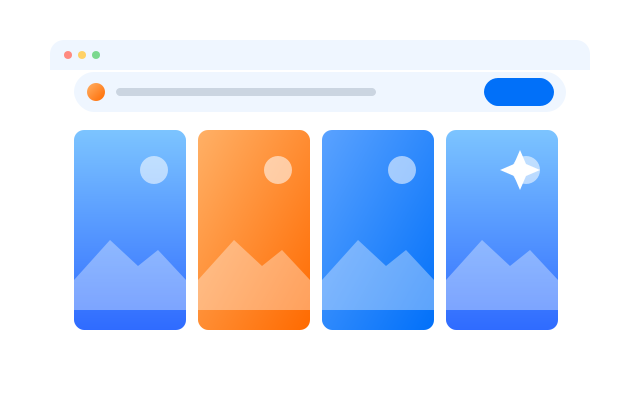
Create media for every account
Generate and adapt images, captions and short videos, then send them to your phones.
- Batch generation
- Brand presets
- Send straight to devices
Made for mobile-first platforms
Run native app workflows on dedicated cloud phones while keeping accounts, teams and campaigns organised.
TikTok
YouTube Shorts
X
Run every TikTok account on its own phone
Manage accounts in different regions from isolated devices, each with its own network and app data, and schedule content without swapping SIM cards.
Keep every Instagram profile separate
Post Reels and Stories, reply to messages and manage client profiles from dedicated devices.
Handle pages, groups and Marketplace
Give each Facebook account a stable mobile environment and keep the work organised by team.
Publish Shorts across channels
Upload and manage short videos for many channels from phones that never mix sessions.
Run brand and outreach accounts on X
Coordinate posting and replies across profiles, each on its own phone with its own proxy.
Grow communities on Reddit
Take part in communities and gather feedback from accounts that stay cleanly separated.
Cloud phones for TikTok
Dedicated Android devices for running TikTok accounts, content and campaigns at scale.
Cloud phones for Instagram
Dedicated Android devices for running Instagram accounts, content and campaigns at scale.
Cloud phones for Facebook
Dedicated Android devices for running Facebook accounts, content and campaigns at scale.
Cloud phones for X
Dedicated Android devices for running X accounts, content and campaigns at scale.
Cloud phones for Reddit
Dedicated Android devices for running Reddit accounts, content and campaigns at scale.
Up and running in four steps
1
Create your phones
Add Android cloud phones for each account, brand or campaign.
Add a cloud phone
Pick how many phones you need and give each one a name, a group and a tag so it is easy to find later.
2
Set up each device
Choose a proxy, location and device details before the first launch, and change them whenever you like.
Configure a phone
Set the proxy, region and device details for a phone, then launch it and install the apps you work with.
3
Sign in and share
Log into your accounts, sort phones into groups and give teammates the access they need.
Invite your team
Invite teammates by role and choose which phone groups each person can open, without passing passwords around.
4
Automate and grow
Use templates and schedules to take routine work off your plate as you add accounts.
Run an automation
Start from a template or build your own flow, schedule it across a group and check the run history afterwards.
Manage all of your cloud phones from the Geelark desktop app.
How cloud phones compare
The best setup depends on whether your work happens in mobile apps, on local test devices, on physical hardware or in a browser.
| Geelark cloud phone | Physical phones | Android emulator | Browser profiles | |
|---|---|---|---|---|
| Runs mobile apps | Native Android apps | Native apps on your own devices | Depends on emulator support | Websites only |
| Managing devices | One web dashboard | By hand, device by device | Tied to one computer | Browser profiles |
| Adding capacity | New phones in seconds | Buy and set up more hardware | Limited by your CPU and RAM | More profiles, still web-only |
| Working as a team | Shared groups and roles | Hard to share remotely | Mostly single-user | Varies, web-focused |
| Tự động hóa | Templates, sync and API | DIY scripts or manual work | Custom scripting | Web automation |
| Best for | Many mobile accounts | A few offline devices | Testing apps locally | Web-based accounts |
Pick a cloud phone if…
you run native mobile apps for many accounts and need remote access, separation and teamwork.
Pick an emulator if…
you mostly test an app on your own computer.
Pick browser profiles if…
your accounts live on websites rather than mobile apps.
Tài nguyên
Guides to get more from cloud phones
Quick reads on how cloud phones work, how they compare with other setups and how teams use them on each platform.
Guides
By platform
Comparisons
How to run multiple social media accounts on cloud phones
A practical setup for keeping several accounts apart: one cloud phone per account, one proxy per phone and a routine your team can follow.
Proxies for multiple accounts: a plain-English guide
What a proxy does, which kind to choose and how to match proxies to accounts without overthinking it.
What to automate across many accounts, and what to keep human
Automation saves hours on repetitive phone work, but not everything should be automated. A simple way to decide.
Cloud phones for TikTok accounts
Give every TikTok account its own Android device, proxy and app data, and schedule routine work across them.
Cloud phones for Instagram accounts
Keep client and brand Instagram accounts on separate phones and share them with the right teammates.
Cloud phones for Reddit accounts
Run community and brand accounts in their own environments, each with its own network settings.
Cloud phone, emulator or multi-account browser?
Three common ways to run several accounts from one computer, what each one is good at and how to choose.
Cloud phones or a phone farm
What changes when the devices live in a data center instead of on a shelf: setup, upkeep, sharing and scale.
What is an antidetect browser?
A short glossary entry on browser profiles, where they fit and where a real Android device is the better choice.
Take a look inside the workspace
Screens from the Geelark app, where you create phones, organise them and share them with your team.
Phone groups
New phone
Proxy
Team
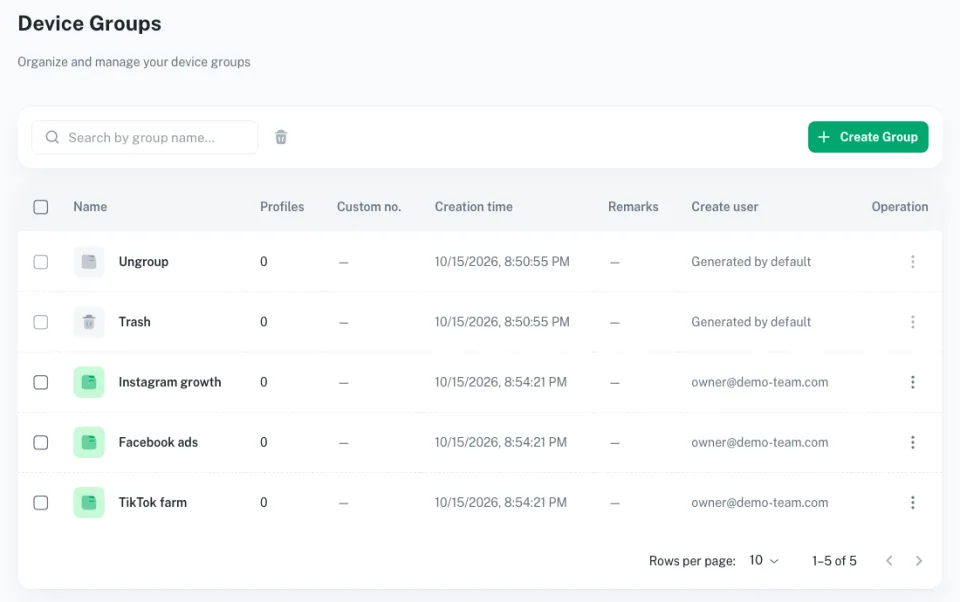
Sort phones into groups by client, brand or platform and find any of them in a second.
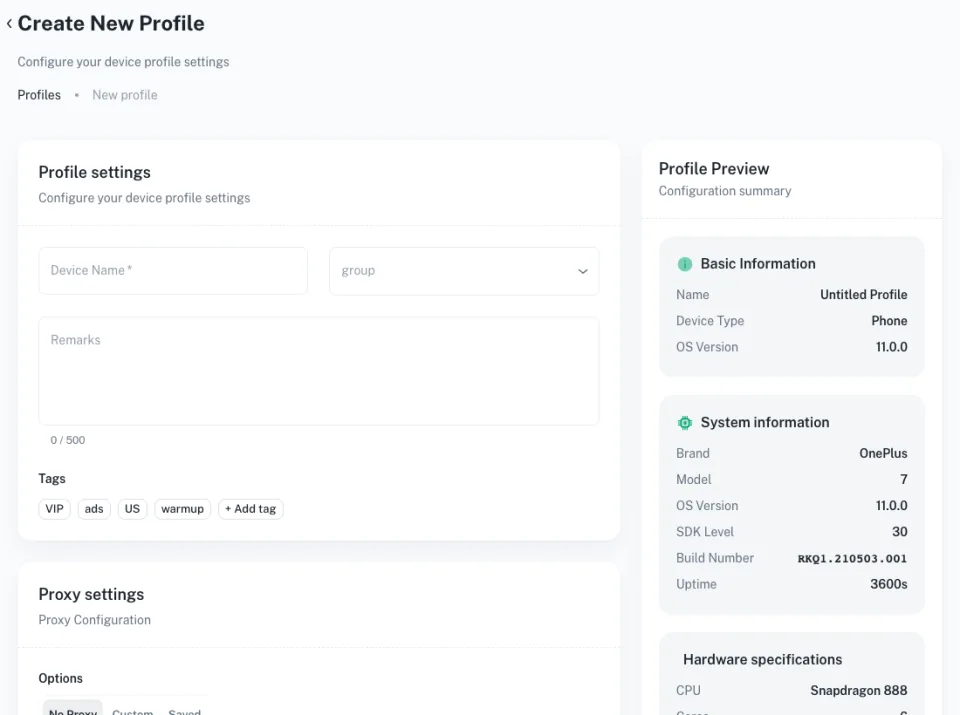
Name a phone, give it tags and check its device details before the first launch.
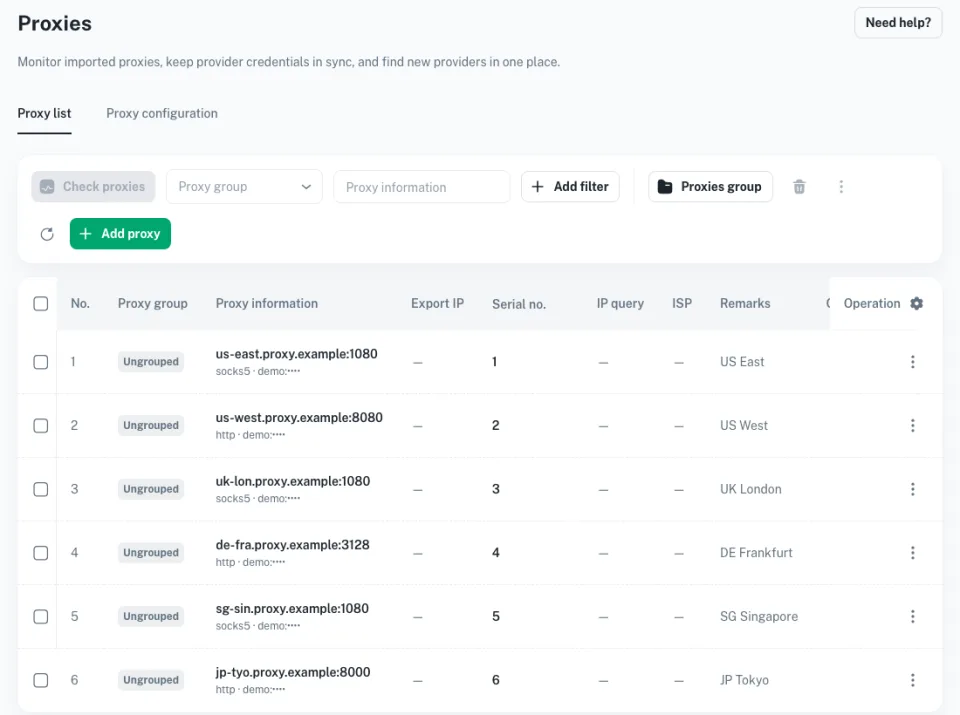
Keep your proxies in one list and assign one to each phone.
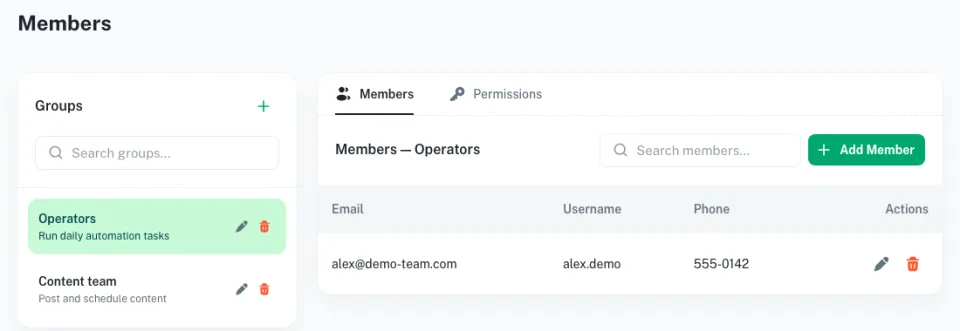
Put teammates into groups and set what each group can open.
Câu hỏi thường gặp
Điện thoại đám mây là gì?
A physical Android device hosted in a data center that you control from your computer.
What can I use cloud phones for?
Running social media, marketplace, gaming and testing workflows that need real mobile apps.
Which apps work on Geelark cloud phones?
Any Android app you can install from an app store or as an APK.
How are accounts kept separate?
Each phone has its own device identity, storage, app data and proxy, so sessions never overlap.
Can I use my own proxies?
Yes. Assign HTTP or SOCKS5 proxies per phone and test them before launch.
Can I automate tasks?
Yes, with ready-made templates, schedules, the synchronizer and an API.
Can my team work on the same phones?
Yes. Invite teammates, set roles and share phone groups.
How is this different from an emulator?
Emulators run on your computer and use its resources. Cloud phones run on dedicated hardware in the cloud.
Do cloud phones support calls and SMS?
Cloud phones are built for running Android apps and do not come with a SIM card, so they are not meant for phone calls. If a workflow depends on SMS codes, ask our team which options fit before you rely on it.
Is iOS supported?
Geelark cloud phones run Android. If you work with iOS-only apps, contact us to ask what is possible today.
Get started in three steps
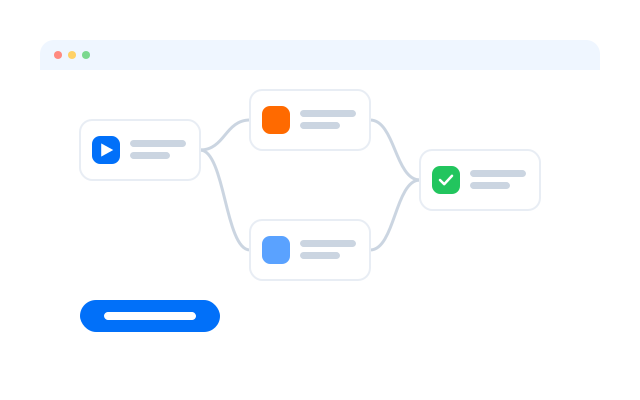
Swap the hardware for the cloud
Start managing mobile-first accounts on Geelark cloud phones, without building a phone farm.