

Upload YouTube videos to several channels
Add the video, title, description and visibility. The template uploads it through the YouTube app on the profile that owns each channel, so you do not have to switch accounts in a browser.
Set it up in five steps
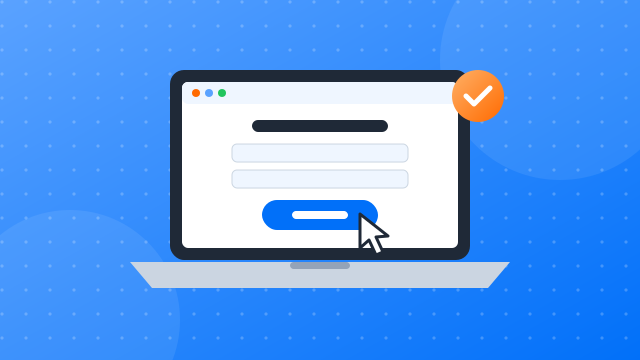
Step 1: Sign up and install the client
- Create a free account.
- Download the desktop client for Windows or macOS.
- Install it and sign in with your new account.
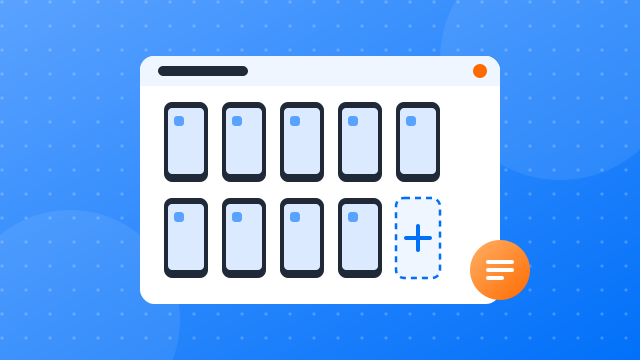
Step 2: Create your first cloud phone profile
- New profile: give it a name you will recognise, such as “YouTube 01”.
- Proxy: assign a proxy so the profile connects from its own IP address.
- Device settings: pick the phone model and region for the profile.
- Start: confirm to launch the cloud phone.
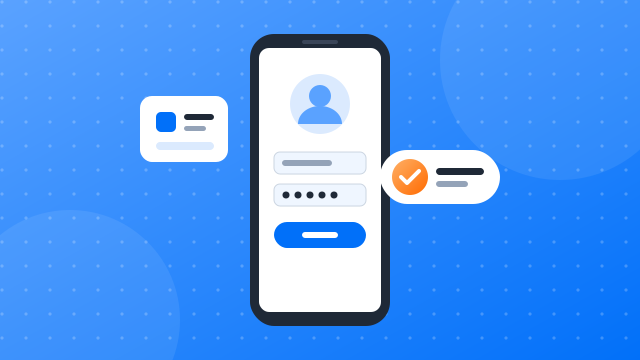
Step 3: Install YouTube and log in
- Open the app library: find the apps section in the client.
- Install YouTube: add it to the profiles you plan to use.
- Open and sign in: launch YouTube on each cloud phone and log in to the account that belongs to it.
- Keep the session: the profile remembers the login, so later runs start signed in.
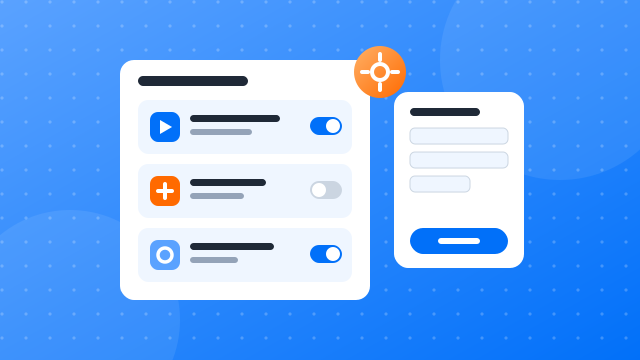
Step 4: Add the “Publish YouTube videos” template and configure it
- Find the template: open the automation template library and search for “Publish YouTube videos”.
- Choose profiles: select the cloud phones the task should run on.
- Video: the file to upload.
- Title and description: per video.
- Visibility: public, unlisted or private.
- Start: run it now or set a schedule, then confirm.

Step 5: Check the run reports
- Open the reports: every run is listed with its profile, start time and status.
- Filter: narrow the list by date, profile or task.
- Inspect a run: see each step, its result and any error, then adjust the settings for the next run.
Publishing to YouTube at scale without the busywork
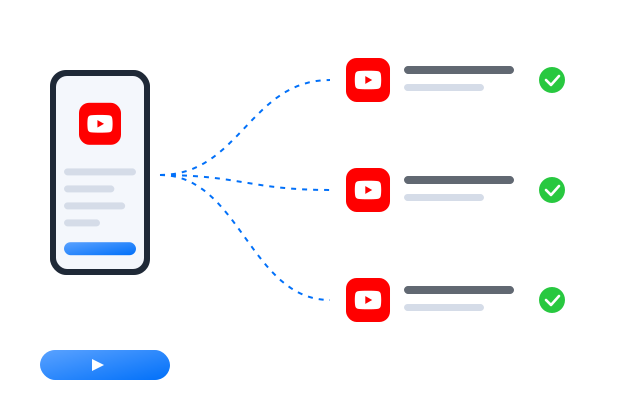
Prepare once, publish from every profile
Publishing the same way on many YouTube accounts is slow by hand: open the app, pick the media, paste the caption, set the options, repeat. With this template you prepare the content and captions once, decide which profile posts what, and set a schedule. Each cloud phone then publishes from its own app session. Keep a content library per account or niche, vary captions and posting times between profiles, and use the run reports to confirm what went live.
More automation guides
How to run multiple social media accounts on cloud phones: a setup guide
A practical setup for keeping several accounts apart: one cloud phone per account, one proxy per phone, clear names and a routine…
Cloud phone, emulator or multi-account browser: which one fits your accounts?
Three common ways to run several accounts from one computer, what each one is good at, and how to choose between them.
How to share social media accounts with a team without sharing passwords
Shared passwords and screenshots of login codes do not scale. Here is a calmer way to give teammates access to the right…
FAQ
Can I set a thumbnail?
The template uses the thumbnail YouTube picks. Change it afterwards in YouTube Studio if you need a custom one.
Where do the files I publish come from?
You upload the media when you configure the task, or pick files your team has already stored. The template copies them to each selected cloud phone before it publishes.
Can each profile post something different?
Yes. Assign different files and captions per profile, or give the template a pool to pick from, so your accounts do not all publish the same post at the same moment.
Is automating YouTube allowed?
YouTube sets its own rules on automated activity and on running more than one account, and those rules change over time. Read YouTube’s current terms of service and community guidelines before you automate anything. Our templates operate the app on your cloud phones; they do not change what YouTube permits.