
Cộng tác nhóm
Give everyone on your team the right access, share phones and profiles safely and see who did what, all from one workspace. Built for remote and in-office teams alike.
Across teams
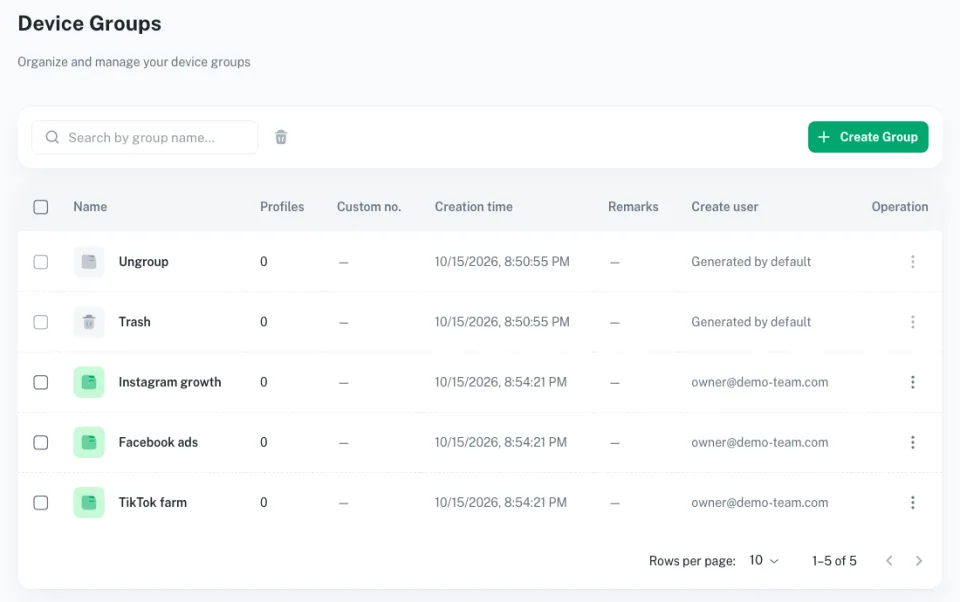
Share profiles between teams
Hand a complete cloud phone profile, with its settings and details, to another Geelark team. They can start using it straight away, with no extra setup.
Custom access
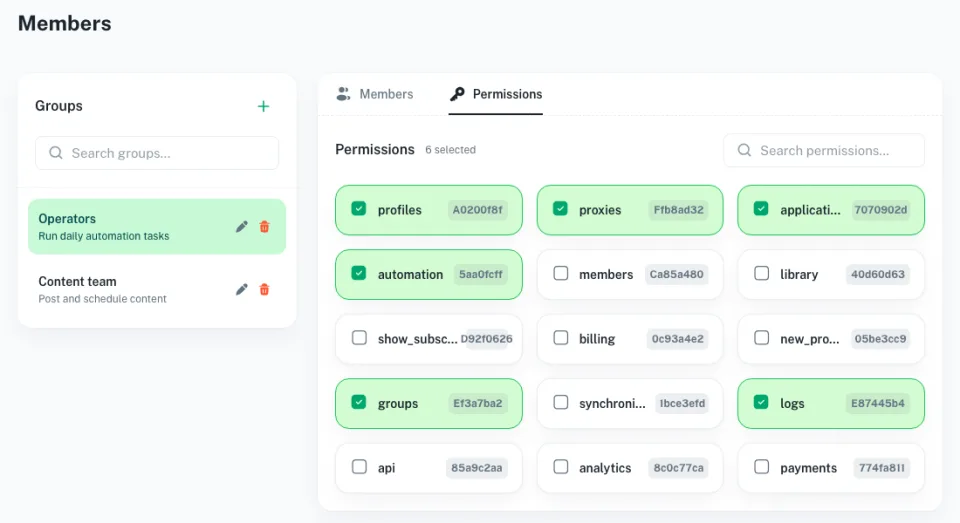
Set access for every teammate
Create access levels for team members and sub-accounts. Decide exactly what each person can do, from viewing profiles to running automation and using the API.

Activity tracking
A full record of team activity
Managers can see every key action each teammate takes, such as signing in, opening, editing, deleting or transferring profiles.
Work together on every app your team uses
Frequently asked questions
How do I set permissions for team members?
Open the members area, then choose which profiles each person or sub-account can see and whether they can use automation, the API, or create, edit and delete profiles.
Can I share cloud phone profiles with another team?
Yes. Share a profile with its name, proxy details, tags and notes, and the other team can use it right away.
How do user groups and roles work?
Create groups and give them roles such as admin, manager or member. Add, change or remove people and update their access as your team changes.
What are activity logs for?
They record key actions by every teammate, so managers can follow what happened, keep people accountable and sort out problems quickly.
How does this help keep our accounts safe?
You decide who can reach which profiles and features, and activity logs show every change, which helps prevent mistakes and unwanted edits.