

Find specific accounts on X (Twitter) and follow them
Have a list of handles, such as partners, team accounts or creators you work with? The template searches for each one on every selected profile and follows it, pausing between follows.
Set it up in five steps

Step 1: Sign up and install the client
- Create a free account.
- Download the desktop client for Windows or macOS.
- Install it and sign in with your new account.

Step 2: Create your first cloud phone profile
- New profile: give it a name you will recognise, such as “X 01”.
- Proxy: assign a proxy so the profile connects from its own IP address.
- Device settings: pick the phone model and region for the profile.
- Start: confirm to launch the cloud phone.

Step 3: Install X and log in
- Open the app library: find the apps section in the client.
- Install X: add it to the profiles you plan to use.
- Open and sign in: launch X on each cloud phone and log in to the account that belongs to it.
- Keep the session: the profile remembers the login, so later runs start signed in.

Step 4: Add the “Find an account on X and follow it” template and configure it
- Find the template: open the automation template library and search for “Find an account on X and follow it”.
- Choose profiles: select the cloud phones the task should run on.
- Handles: one username per line, with or without the @.
- Interval: the shortest and longest wait between actions.
- Start: run it now or set a schedule, then confirm.

Step 5: Check the run reports
- Open the reports: every run is listed with its profile, start time and status.
- Filter: narrow the list by date, profile or task.
- Inspect a run: see each step, its result and any error, then adjust the settings for the next run.
Keeping X accounts active between posts
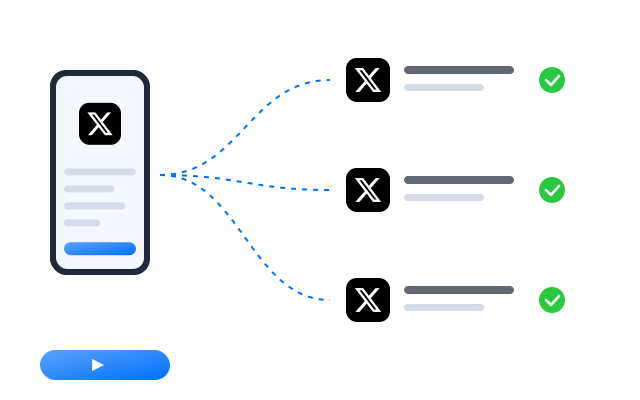
Steady, varied engagement instead of bursts
Accounts that only show up when they post tend to get little attention. Regular, varied engagement, such as liking, commenting, following and browsing in your niche, keeps an account part of the conversation. This template performs those actions on each cloud phone with random intervals and limits you control, so activity is spread out rather than arriving all at once. Start with low daily limits, aim at content that fits each account, and review the run reports to fine-tune.
More automation guides

How to run multiple social media accounts on cloud phones: a setup guide
A practical setup for keeping several accounts apart: one cloud phone per account, one proxy per phone, clear names and a routine…

Cloud phone, emulator or multi-account browser: which one fits your accounts?
Three common ways to run several accounts from one computer, what each one is good at, and how to choose between them.

How to share social media accounts with a team without sharing passwords
Shared passwords and screenshots of login codes do not scale. Here is a calmer way to give teammates access to the right…
FAQ
What if a handle cannot be found?
The step is skipped for that handle and the run report lists it, so you can check the spelling.
How do I keep the activity looking natural?
Use the interval and limit settings: keep daily counts modest, let the template vary timing and order, and avoid starting every profile in the same minute.
Can I focus on one niche?
Yes. Give the template keywords, hashtags or accounts that match each profile’s topic, so the actions land on content that account would plausibly engage with.
Is automating X allowed?
X sets its own rules on automated activity and on running more than one account, and those rules change over time. Read X’s current terms of service and community guidelines before you automate anything. Our templates operate the app on your cloud phones; they do not change what X permits.