Turn any image into a social-ready video with AI
Add motion, camera moves and atmosphere to your still images. Pick an AI video model, tune the output and keep every clip ready for your social workflows in Geelark.
Image to video
Bring still images to life
Start from a picture on your computer or in your Geelark library, describe the movement you want, choose a model, adjust the settings and generate.
01
Describe the motion
Tell the AI how the camera, subject or scene should move and what mood to aim for.
02
Start from your own images
Upload a file or pick an asset you already saved in your library.
03
Tune the output
Set aspect ratio, resolution and length, depending on the model you choose.
Made for social content
Make video content from the images you have
Give existing visuals a new life as short-form video, from product photos and campaign art to AI-generated images.
Short videos
Turn still visuals into vertical clips for TikTok, Reels and Shorts.

Product shots
Add movement to product photos for launches, promos and ads.
Creative variations
Try different prompts, motion styles or models on the same picture.
AI artwork
Generate an image with the Geelark image tool, then animate it into a clip.
Multiple AI models
Pick the right model for each image
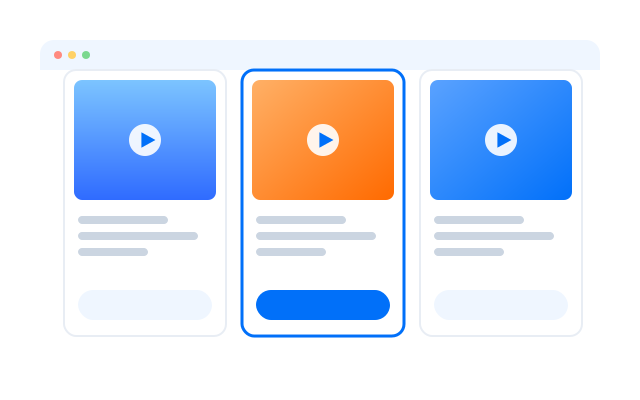
Different ideas suit different models. Geelark puts several AI video models in one workspace so you can choose one and set it up for each job.
How it works
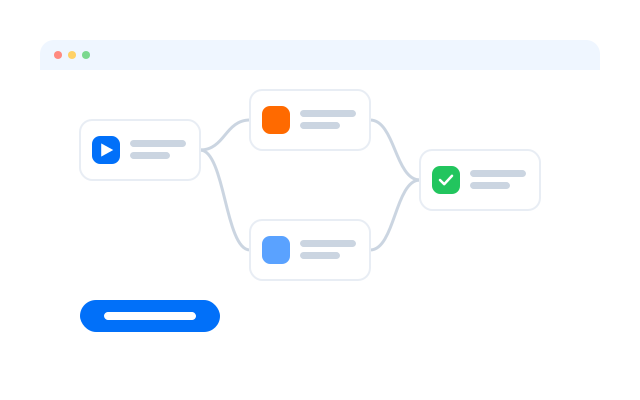
From image to video in three steps
Most AI video tools stop once the clip is made. In Geelark it carries on into your library, your automations and your cloud phones.
01
Upload or pick an image
Add a file from your computer or choose one from your Geelark library.
02
Choose a model and describe the motion
Select an AI video model, write a short prompt and adjust the video settings.
03
Generate and save
Create the clip and keep it in your library to review, reuse or schedule later.
From creation to publishing
Make the video, then keep going
Creating the clip is only the start. Store it in your library, reuse it in automations and publish it from your cloud phones.
02
Generate
Turn it into a clip with the model you picked.
03
Library
Keep generated assets tidy and ready to reuse.
06
Social platforms
Carry on across TikTok, Instagram, YouTube, Reddit and more.
Automate what comes next
Send your AI videos into social workflows
When a clip is ready in your library, use it in Geelark automation templates for publishing and other routine tasks.
Post a TikTok video
Publish an Instagram Reel
Upload a YouTube Short
Share a video on Reddit
TikTok
YouTube
Snapchat
Threads
More AI tools
Keep creating with Geelark AI
More AI tools to make, transform and edit content for your social workflows.
Image generator
Create visuals from a prompt, a reference image or both.
Text to video
Generate a video from a written prompt.
AI video editor
Trim, restyle and improve clips for your next post.
Resources
Learn more about AI video
Guides on creating AI videos and bringing them into your social media workflow.
How to run multiple social media accounts on cloud phones: a setup guide
Read more: How to run multiple social media accounts on cloud phones: a setup guideA practical setup for keeping several accounts apart: one cloud phone per account, one proxy per phone, clear names and a routine…

Cloud phone, emulator or multi-account browser: which one fits your accounts?
Read more: Cloud phone, emulator or multi-account browser: which one fits your accounts?Three common ways to run several accounts from one computer, what each one is good at, and how to choose between them.
How to share social media accounts with a team without sharing passwords
Read more: How to share social media accounts with a team without sharing passwordsShared passwords and screenshots of login codes do not scale. Here is a calmer way to give teammates access to the right…
What to automate across many accounts, and what to keep human
Read more: What to automate across many accounts, and what to keep humanAutomation saves hours on repetitive phone work, but not everything should be automated. A simple way to decide.
Proxies for multiple accounts: a plain-English guide
Read more: Proxies for multiple accounts: a plain-English guideWhat a proxy does, which kind to choose, and how to match proxies to accounts without overthinking it.
FAQs
What is image to video?
An AI tool that animates a still picture into a short video clip based on your prompt.
Which images work best?
Clear, well-lit images with a visible subject usually give the most convincing motion.
Can I control the movement?
Yes. Describe camera moves, subject motion or atmosphere in your prompt.
Which video settings can I change?
Aspect ratio, resolution and length, depending on the model.
Where are my videos saved?
In your Geelark library, ready to download, reuse or add to automations.
Can I publish the videos automatically?
Yes. Use automation templates to post them from your cloud phones.
Which AI models are available?
The model picker lists every video model available to your workspace, such as Seedance, Veo, KLING and Hailuo.
How much does it cost?
AI generation depends on your Geelark plan. See the pricing page for what each plan includes.
Get started in three steps
Turn your next image into a video in minutes