
Veo AI video model
Create AI videos with Veo in Geelark
Turn text prompts or reference images into AI videos with Veo. Create clips for social media, keep them in your Geelark library and bring the ones you choose into your publishing workflows.
Model overview
What is Veo in Geelark?
Veo is an AI video model developed by Google DeepMind. In Geelark you can select it in the video tools to create clips from text prompts or reference images.
Veo generates the video. Geelark gives you the workspace around it: generation settings, a library for the results and supported social media workflows for what comes next.
| Feature | In Geelark |
|---|---|
| Model | Veo, from Google DeepMind |
| Available in | Text to video and image to video |
| Inputs | A written prompt, or a reference image with a prompt |
| Versions | Listed in the model picker |
| Generation settings | Shown for the selected version, such as aspect ratio and length |
| Saved to | Your Geelark library |
| Next step | Publishing templates that run on cloud phones |
Two ways to create
Start with a prompt or a reference image
Start with a new idea or an image you already have. Pick Veo, then set the options the tool shows for your clip.
Text to video
Image to video

Turn text into video
Describe the subject, the action, the setting and how the camera should move. Veo turns the description into a short scene you can review, keep or try again.
Turn images into video
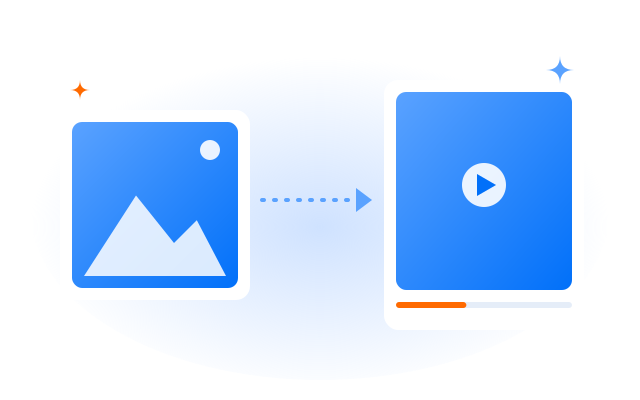
Upload a still or pick one from your library, then describe the motion you want. Veo uses the image as the starting point for the scene.
Connected workflow
Bring your Veo videos into Geelark workflows
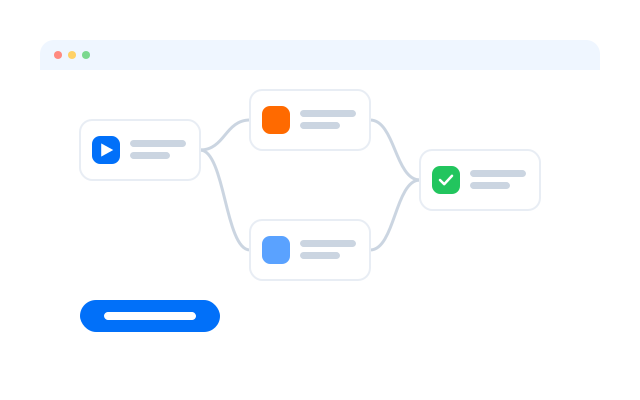
Create with Veo, keep the results in your library and use the clips you choose in publishing tasks that run on Geelark cloud phones.
01
Create with Veo
Pick Veo in the AI tools, add your prompt or reference image and adjust the available settings.
02
Review in Library
Generated clips land in your library, where you can compare results and keep the ones that work.
03
Configure a publishing task
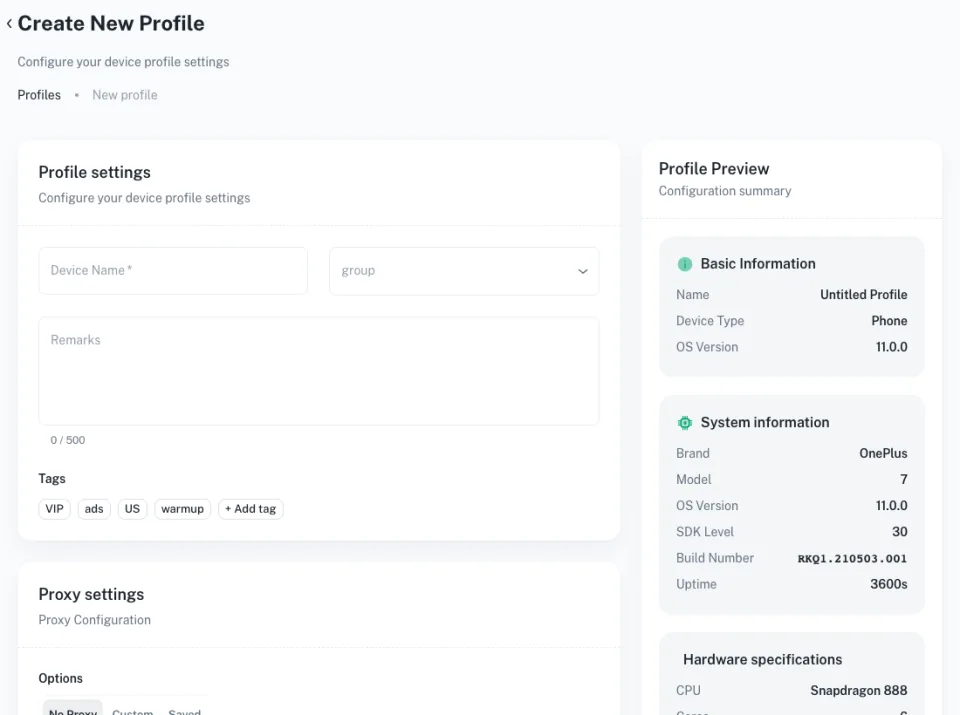
Choose a publishing template, add the videos you picked, select cloud phone profiles and fill in the task details.
04
Run through cloud phones
The task runs on the cloud phones you selected. Follow its status and results from the task list.
Related tools and models
Explore more ways to create with Geelark AI
Choose a tool for the input you have, or try another model for your next video idea.
Text to video
Create a new video scene from a written prompt.
Image generator
Create visuals from text, images or a blend of both.
Image to video
Use a still image as the starting point for a video.
AI video editor
Upload, edit and prepare videos with AI.
Get started in three steps

FAQs
What is Veo in Geelark?
Veo is an AI video model from Google DeepMind. In Geelark you can choose it in the text-to-video and image-to-video tools, then keep the results in your library for your social media workflows.
Which Veo versions can I use?
The versions available to your workspace are listed in the model picker. Each one shows its own settings, so check them before you generate.
Can I create Veo videos from both text and images?
Yes. Start from a written prompt in text to video, or from a still image in image to video.
What resolution, length and aspect ratio can I choose?
That depends on the version and the mode. The available options appear in the tool as soon as you select the model.
Where are my generated videos saved?
In your Geelark library, where you can review them, download them or add them to automation tasks.
Can I publish Veo videos across multiple accounts?
Yes. Add videos from your library to a publishing template and run it on the cloud phone profiles you choose. Follow each platform’s rules on automated and repeated posting.
How much does it cost to use Veo?
AI generation depends on your Geelark plan. See the pricing page for what each plan includes.
Make your next clip with Veo
Generate your first Veo video in Geelark.