Manage multiple Gmail accounts in separate cloud phones
Run each Gmail account in its own Android cloud phone profile, use the official Gmail app, and manage account access, team permissions and repetitive workflows from one dashboard.
Separate Android environments
Official Gmail app
Central profile management
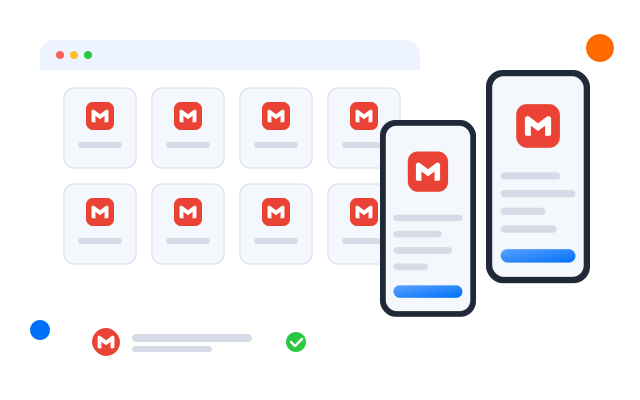
Choose a method
What is the best way to manage multiple Gmail accounts?
Gmail’s account switcher works for a few personal accounts. Once you manage more accounts, client accounts, regional work, test accounts or shared team access, stronger separation and central management become more practical.
Gmail account switcher
Best for
A few personal accounts.
Advantages
Simple and built into Google services.
Limitation
Accounts still share the same device or browser environment.
Chrome profiles
Best for
Separating a few accounts on a desktop.
Advantages
Separate browser profiles, cookies and sessions.
Limitation
Built for browser work rather than native Android apps.
Email client
Best for
Reading mail from several inboxes in one place.
Advantages
Convenient inbox consolidation.
Limitation
No separate Android environment per account.
Geelark cloud phones
Best for
Many accounts, client work, testing, distributed teams, or workflows that need separate Android environments.
Advantages
- A separate cloud phone profile per account
- A native Android environment
- The official Gmail app
- Settings per profile
- Team permissions
- Automation
The problem
When is Gmail’s built-in account switcher not enough?
Switching accounts in Gmail is fine for a few personal accounts. Once a team manages more authorised Gmail or Google accounts, separate projects and several operators, switching inboxes no longer gives you the separation, access control and structure the work needs.
Constant account switching
Moving between many Gmail or Google accounts makes daily work harder to organise and track.
No separate environments
Built-in switching keeps accounts on the same device instead of giving each its own mobile environment.
Team access gets complicated
Several operators need controlled access to assigned accounts without sharing devices or credentials.
Proxy management is fragmented
Teams handling different projects or regions may need separate proxy settings per environment.
Scaling adds overhead
As accounts, clients and operators grow, organising access and mobile workflows by hand gets harder.
Move beyond basic account switching
Separate Android environments
Controlled team access
Proxy settings per profile
Cloud workflows that scale
How Geelark cloud phones work for Gmail
Instead of switching many accounts inside one local device, Geelark gives authorised Gmail and Google accounts separate Android cloud environments, with independent app sessions, proxy settings and controlled team access.
Why Geelark
Why social media teams choose Geelark
A product built for multi-account work, not a workaround stacked on top of a browser.
A cloud phone for each account
Every account runs on its own Android phone in the cloud, always on and reachable from any computer, with no handsets to buy or charge.
Separate account environments
Device details, storage, app data and network settings stay with one profile, so accounts do not share a footprint.
Automation for routine work
Warm-up, posting and other repeat tasks run on a schedule across a whole group of phones.
Built for teams
Invite teammates, give access per group and hand work over without passing passwords around.
One workspace, six working surfaces
Everything your team needs to manage mobile account work in one place.
Cloud phones
Automation
Synchronizer
Proxy settings
Team workspace
AI content
Run Gmail accounts in separate cloud phones
Give each authorised Gmail or Google account its own Android cloud phone, so teams keep app sessions, device profiles and workflows apart while managing everything from one workspace.
- A dedicated Android environment per account
- Native Gmail app workflows
- Independent proxy settings
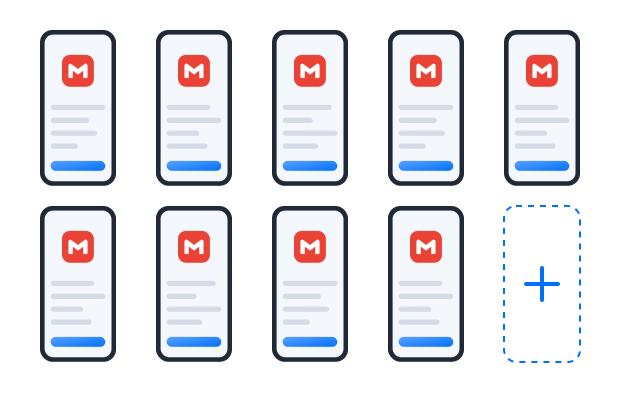
Automate repetitive mobile workflows
Turn routine Gmail steps into templates or no-code workflows, then schedule them across the phones you choose.
- Ready-made templates
- Drag-and-drop workflow builder
- Run history for every task
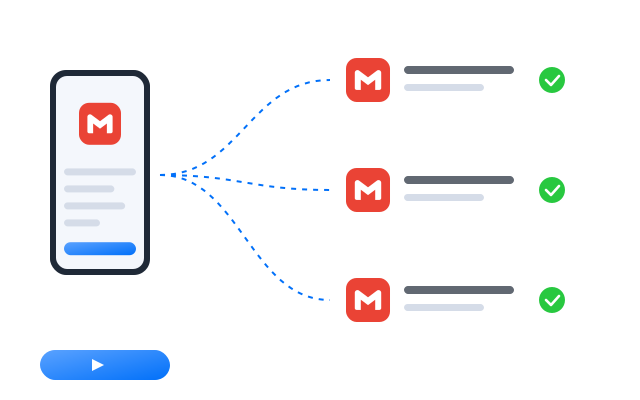
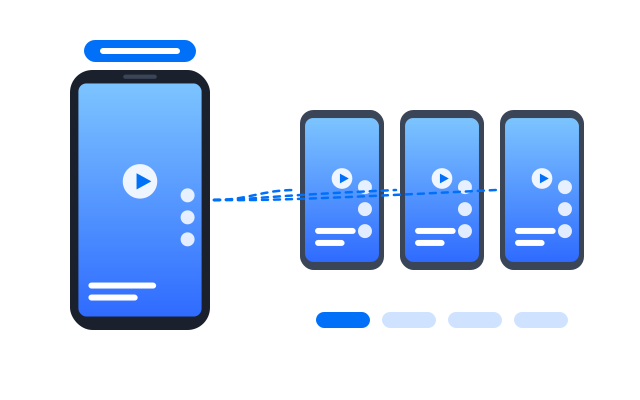
Repeat actions across multiple cloud phones
Tap, type and scroll on one main phone and mirror the same actions on the others in real time.
- Choose which phones follow
- Live view of every screen
- Pause any phone at any time
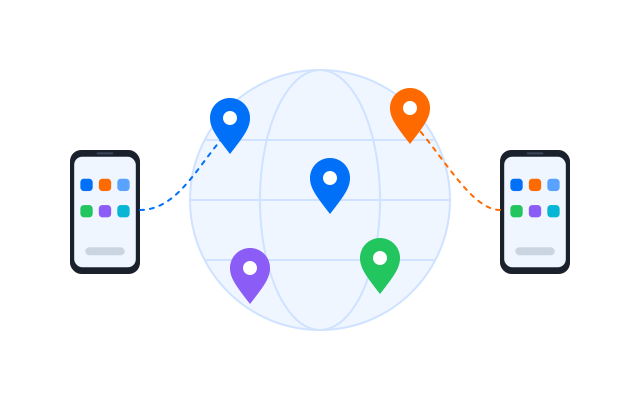
Configure network environments by account
Assign a proxy to each cloud phone and check where it connects from before you sign in.
- HTTP and SOCKS5 proxies
- One proxy per profile
- Built-in connection check
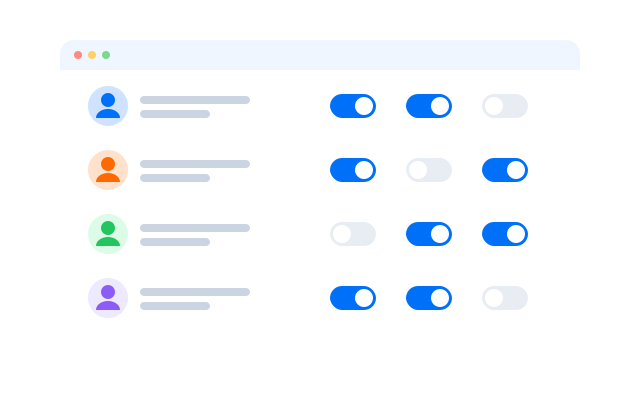
Assign access without sharing devices
Invite teammates, give each role the phone groups it needs and keep a record of who did what.
- Roles and permissions
- Shared phone groups
- Activity history
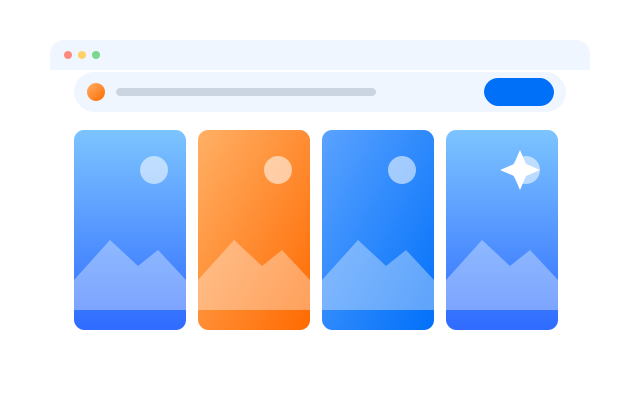
Create social-ready content with AI
Draft captions, images and short videos in the AI studio and send them straight to the phones that post them.
- Text, image and video tools
- Batch generation
- Send files to cloud phones
Built-in templates
Start your Gmail workflows with ready-made templates
Use built-in templates to automate common Gmail and Google account tasks across your cloud phones.
Install apps from Google Play
Google account sign-in
Open a Google app for browsing
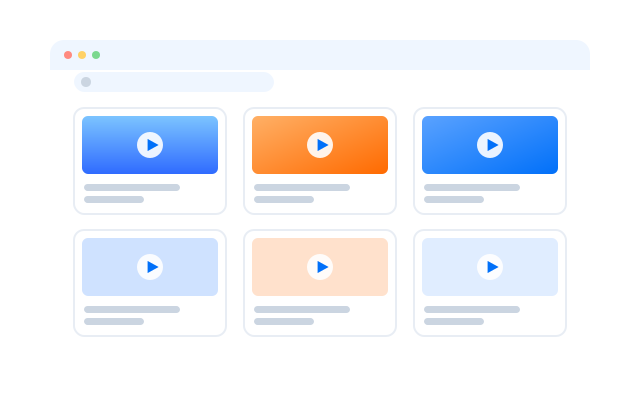
Template walkthrough
Pick a template, choose the phones it should run on and set a schedule.
Comparison
Geelark vs traditional multi-account setups
Where each approach works, and where it starts to get in the way.
| Criteria | Geelark | Physical phones | Android emulators | Browser profiles |
|---|---|---|---|---|
| Adding accounts | New cloud phones from one dashboard | Buy and set up another device | Limited by your computer’s CPU and RAM | Quick to add, but tied to one machine |
| Separation | Own device details, storage and network per profile | One handset per account | Profiles share the host computer | Browser-level separation only, no mobile apps |
| Teamwork | Roles and shared groups in one workspace | Devices passed from hand to hand | Usually one person at one desk | Logins often shared by message |
| Automation | Templates, schedules, RPA and API | Mostly manual | Scripts you write and maintain | Web automation only |
| Hardware | None, it runs in the cloud | Phones, SIMs, chargers and space | A powerful computer | A capable desktop |
| Mobile apps | Native Android apps | Native apps | Emulated Android | Websites only |
Choose a cloud phone when…
you run native mobile apps for many accounts and need remote access, separate environments and a team.
Choose an emulator when…
you mainly test an app on your own computer.
Choose a browser profile when…
your work happens on websites rather than in mobile apps.
Run multiple accounts on the platforms you already use
 TikTok
 Instagram
 X (Twitter)
 Facebook
 YouTube Shorts
 Reddit
 Pinterest
 Gmail
Gmail LinkedIn
 Tinder
 OnlyFans
 Snapchat
 Threads
 Telegram
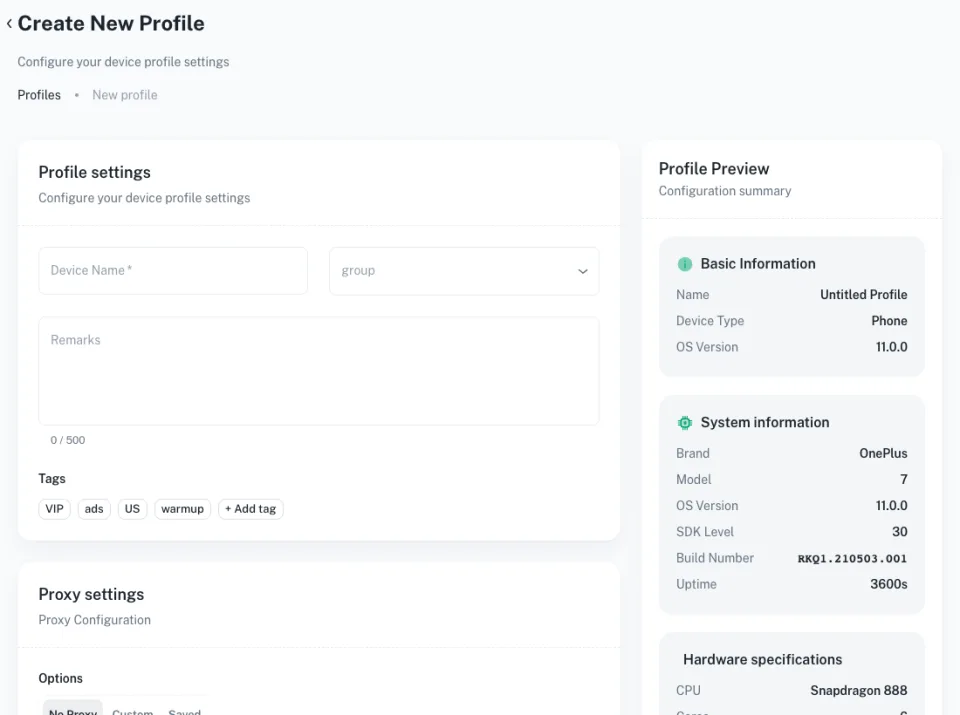
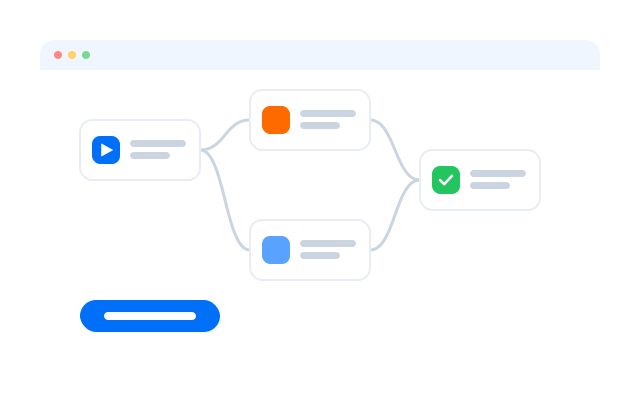
Get started in 3 simple steps
FAQs
Can I have multiple Gmail accounts?
Google lets you sign in to several Google accounts and switch between them. The best way to manage them depends on how many you run and whether they need separate environments. Check Google’s terms for the rules on creating accounts.
How do I manage multiple Gmail accounts on Android?
On one phone you can add accounts in the Gmail app. With Geelark, each account can instead live in its own Android cloud phone.
Can I use multiple Gmail accounts in the Gmail app?
Yes, the Gmail app supports several accounts on one device. They then share that device’s environment.
What is the difference between Gmail’s account switcher and Geelark?
The switcher changes accounts inside one environment. Geelark gives each account its own Android cloud phone with its own app data, proxy and access rules.
Can each Gmail account use a separate cloud phone profile?
Yes. Create one cloud phone per account and sign in to Gmail there.
Can I install the official Gmail app in Geelark?
Yes. Cloud phones are Android devices, so you install Gmail and other apps from the app store.
Can my team manage different Gmail environments?
Yes. Group cloud phones by client or project and give teammates access only to the groups they work on.
Does Geelark provide proxies?
You can bring the proxies you already use and assign one to each cloud phone. See Pricing for what your plan includes.
Manage your Gmail workflows from separate cloud phones
Create dedicated Android cloud phone profiles, organise your account environments and manage them from one Geelark workspace.